
Overview
Bluebeam Revu CAD improves communication, productivity and collaboration on projects by enabling digital processes from end to end. The professional PDF solution for CAD users, Revu CAD provides powerful PDF creation, markup and editing features for a paperless workflow.
Use Revu's plugins for AutoCAD®, Revit®, Navisworks® Manage, Navisworks Simulate, SolidWorks® and MS Office for one-button 2D and 3D PDF creation and batch options, or use the Bluebeam PDF printer to convert other CAD and Windows files to 10 different file formats. Revu automatically reads your drawing's orientation, scale, line weights, merged lines, plot style table, and page size, so there is no need to adjust your settings. Redline 2D and 3D PDFs with industry standard markups including text, clouds, highlights, CAD symbols, stamps, images and more. Save custom markups in the patented Tool Chest™ for easy reuse, and use Revu's editing capabilities to assemble PDFs of RFIs, submittals, bid sets and more. Perform takeoffs, automatically compare drawings, track markups in a list, integrate with SharePoint® or ProjectWise®, go mobile on a tablet PC or iPad, and collaborate with project partners around the world in real time using Revu's cloud-based solution, Bluebeam Studio™.
Revu includes direct plug-ins for one button PDF and batch creation from AutoCAD®, Revit®, Navisworks® Manage, Navisworks Simulate, SolidWorks®, and Microsoft® Office.
Easily tab between PDF files, launch multiple sessions of Revu at once and split your screen up to 16 times with MultiView™.
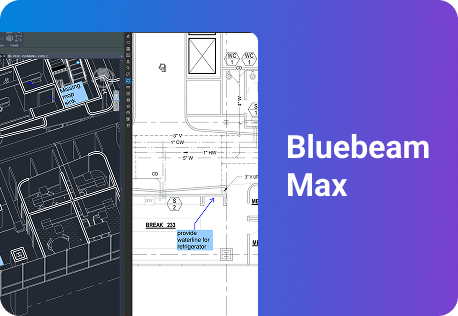
Create 3D PDFs from Revit, Navisworks Manage and Navisworks Simulate, navigate and manipulate 3D PDF models and add markups to 3D views.
Use the File Access tab to pin, organize, preview and reopen PDF files with a mouse click.
Search for keywords or phrases within PDF files and folders, or search for symbols regardless of variations in color, size and rotation, or intersecting line obstructions using Revu's exclusive VisualSearch™.
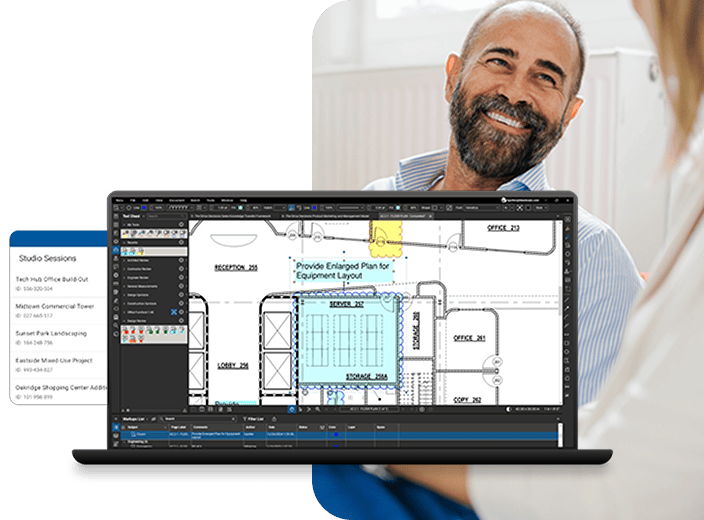
Studio allows you to store and manage files in the cloud, and collaborate on project documents in real time, or anytime, from anywhere.
Revu integrates into ProjectWise® and SharePoint® document management systems so you can seamlessly retrieve and check-in documents directly from Revu.
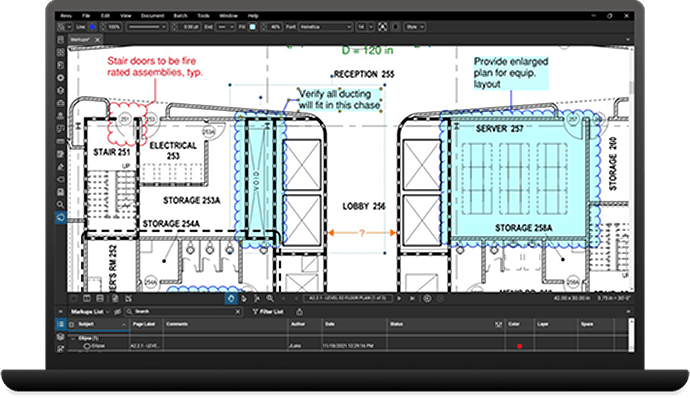
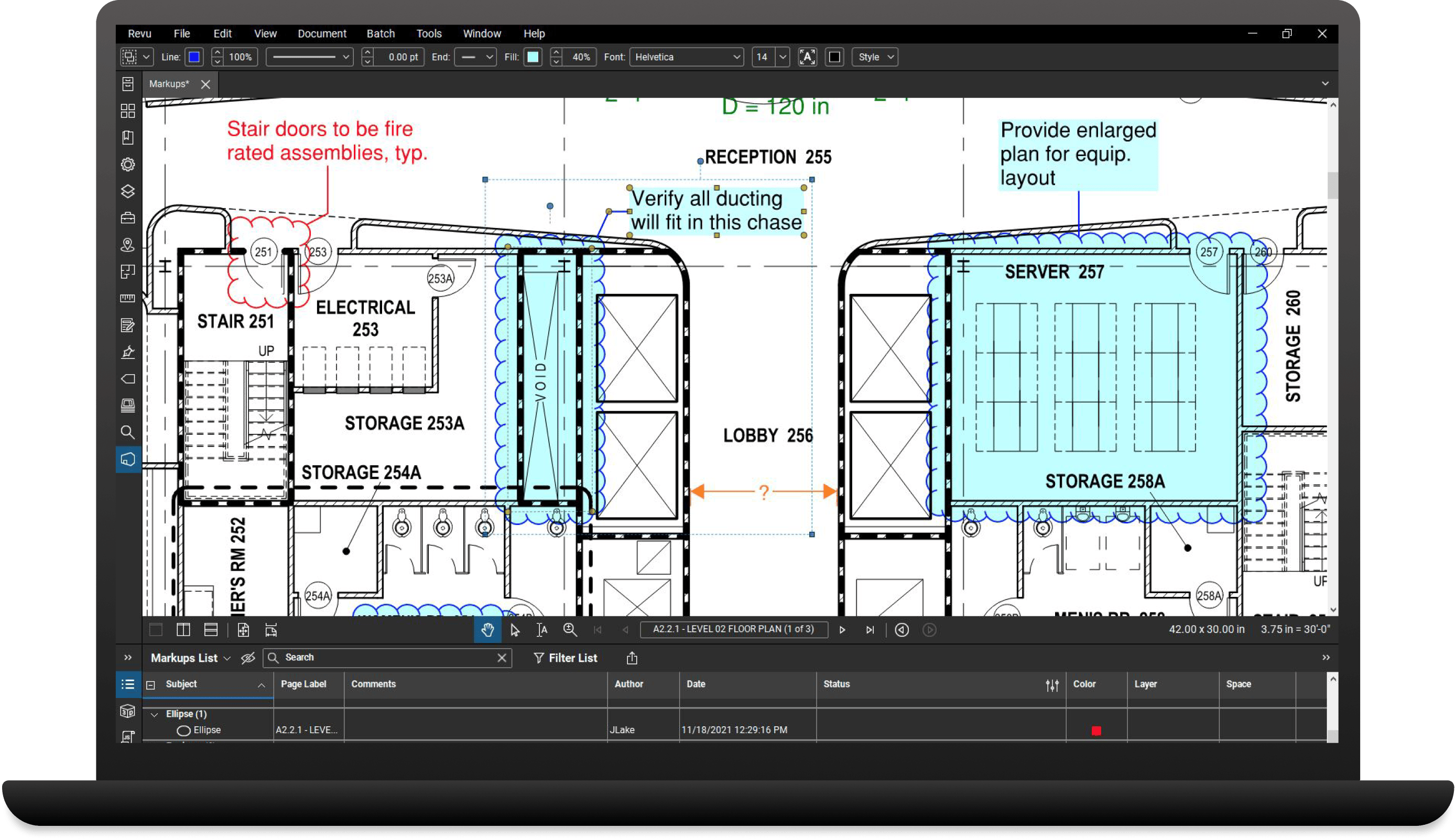
Manage and track markups in a convenient list that can be filtered, searched, imported and exported.
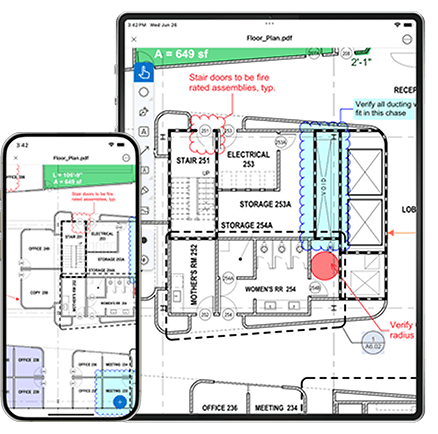
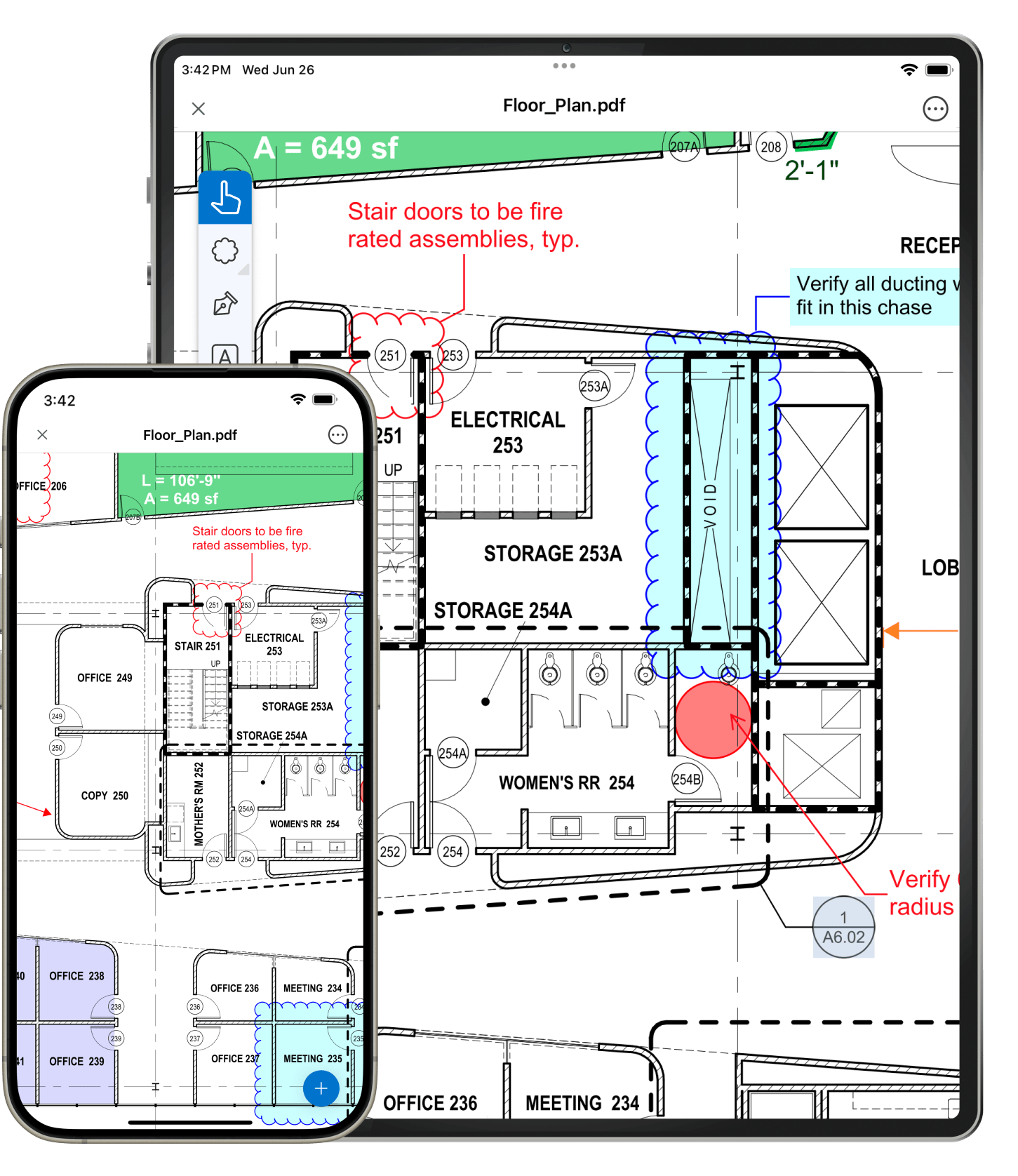
View and markup PDF files with the ease of your tablet pen. Tablet-specific functionality makes it easy to go mobile.
Define spaces within Spaces to automatically track markups.
Stamp PDF documents with date, time, signatures and more. Use predefined stamps in Revu or create your own.
Flatten all markups, or individual markups, to make them a part of your PDF content.
Add flags to PDF files to designate signature lines or draw attention to important information.

Electronically sign PDF documents to support an electronic workflow and protect your intellectual property.
Apply a password to PDFs and set permissions to specify what recipients of your PDF can and can not do.
PDF editing tools let you edit text, apply headers and footers, assemble files, and add, delete or rotate pages.
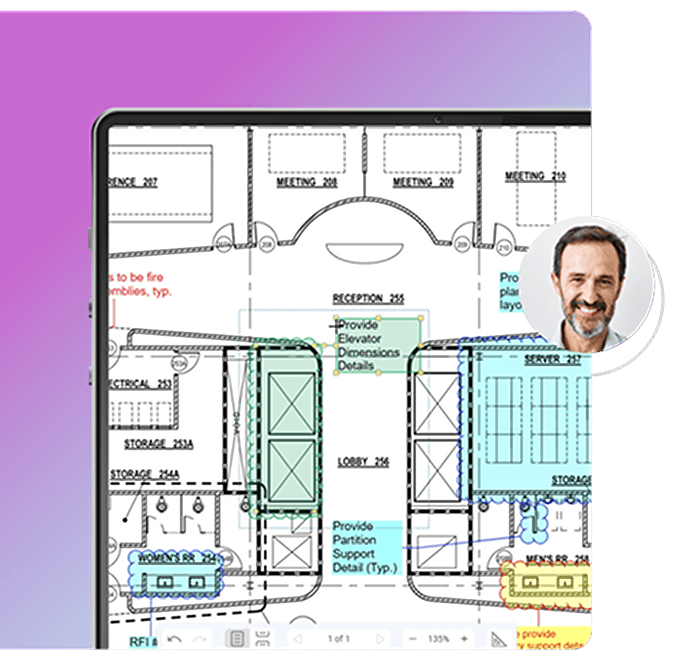
Redline 2D and 3D PDFs with customizable markups tools, such as text, notes, highlighter, lines, clouds, callouts, stamps and more.
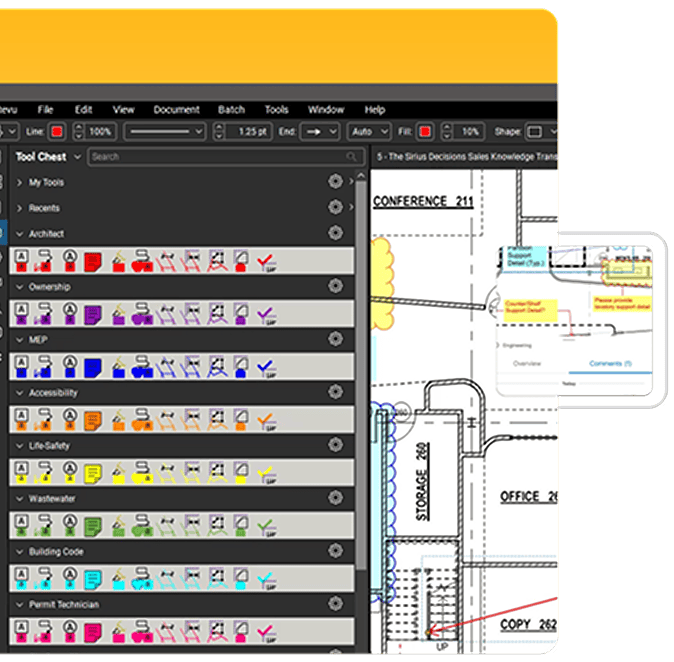
Save commonly used markups in the exclusive Tool Chest for easy reuse, and import or share tool sets with colleagues.
Take measurements, count from PDFs and perform area cutouts electronically. Add formulas to the built-in worksheet using the Formula Editor to calculate costs in Revu.
Highlight the differences between two drawing revisions with easily identifiable clouds, or compare two or more PDFs by assigning colors to layers with Overlay Pages.
Access an unlimited number of files and view them as a single document, in a single tab. Filter and organize files by page label or numeric sequence, and automatically identify addenda.
Convert an unlimited number of files to PDF. Add security, stamps, headers and footers or flatten an entire folder of PDFs at once.
Store menu and display settings in Profiles and create custom tool sets, toolbars and stamps to fit your workflow.
Standardize the appearance of markups in one fell swoop by copying the properties of one markup and applying them to a similar markup or group of markups.
Manage and add hyperlinks to PDFs that link to websites, networked files, or jump to specific pages and places in a PDF.
Use bookmarks to jump to a specific page in a PDF or snapshot view, go to a webpage or open a file.
Assign markups to layers, easily toggle layers on and off and insert a page as a layer.
Seamlessly convert your PDF files back to Word, Excel, or PowerPoint for easy editing and formatting.
Fill markups with hatch patterns or create your own hatches with the hatch pattern editor.
Get rid of unwanted text or images for good with Erase Content or move data from one place to another with Cut Content.
Use the chart below to find out.
| Feature | 2004 - 2006 | 2007 | 2008 - 2013 |
| PDF creation (PDF, TIFF, jpeg, etc.) | |||
| Transfer hyperlinks created in model space | |||
| Transfer hyperlinks created in paper space | |||
| Manage Bluebeam page setup | |||
| Manage AutoCAD page setup (read-only) | |||
| Add stamps | |||
| Add digital signatures | |||
| Embed file attachments | |||
| Transfer block attributes | |||
| Transfer SHX fonts | |||
| Transfer custom properties | |||
| Enable line merge | |||
| Blend modes | |||
| Multi-select files from Batch window | |||
| Drag and drop files from Batch window | |||
| Post-process PDFs | |||
| Apply security | |||
| Manage bookmarks | |||
| Import sheet set files (.DST) | |||
| Import publish files (.DSD) | |||
| Dynamic loading |