
OverviewLinks makes it easier than ever to add and manage hyperlinks in a PDF. Configure hyperlinks to display websites and networked files, or jump to specific pages or snapshot views in your PDF. Create and name link destinations, otherwise known as places, and then hyperlink to those places in the current PDF or another PDF. All document hyperlinks are displayed in a list for easy editing and organization, with default visual properties that can be set by the user. Ready, set, go!
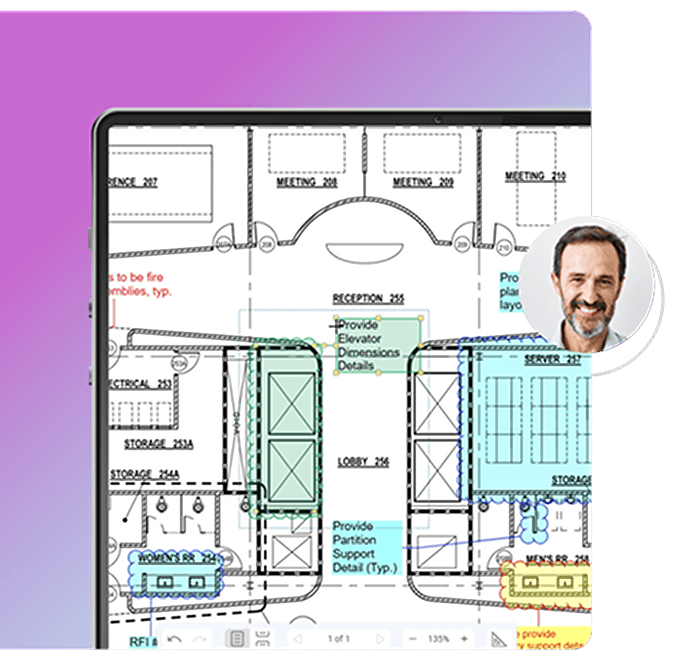
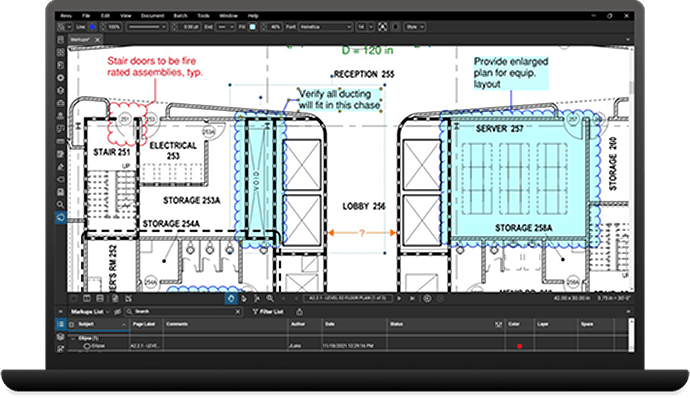
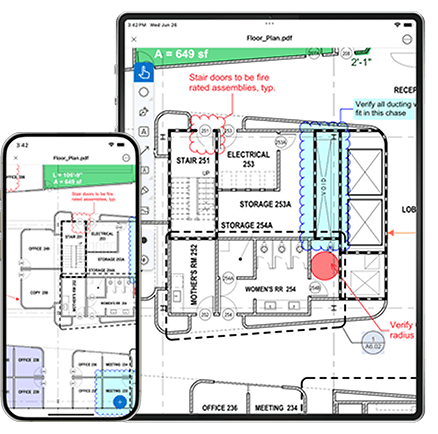
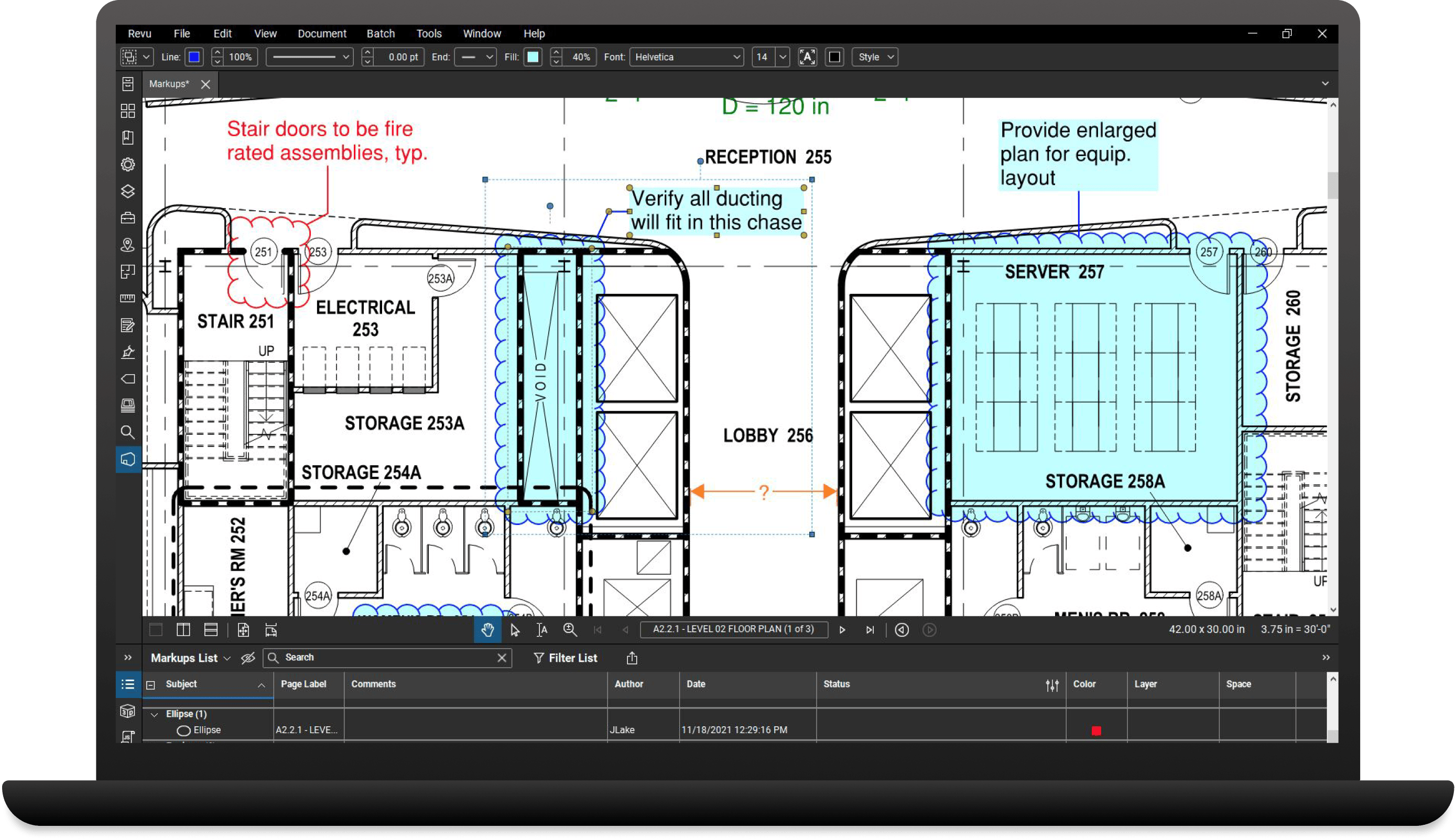
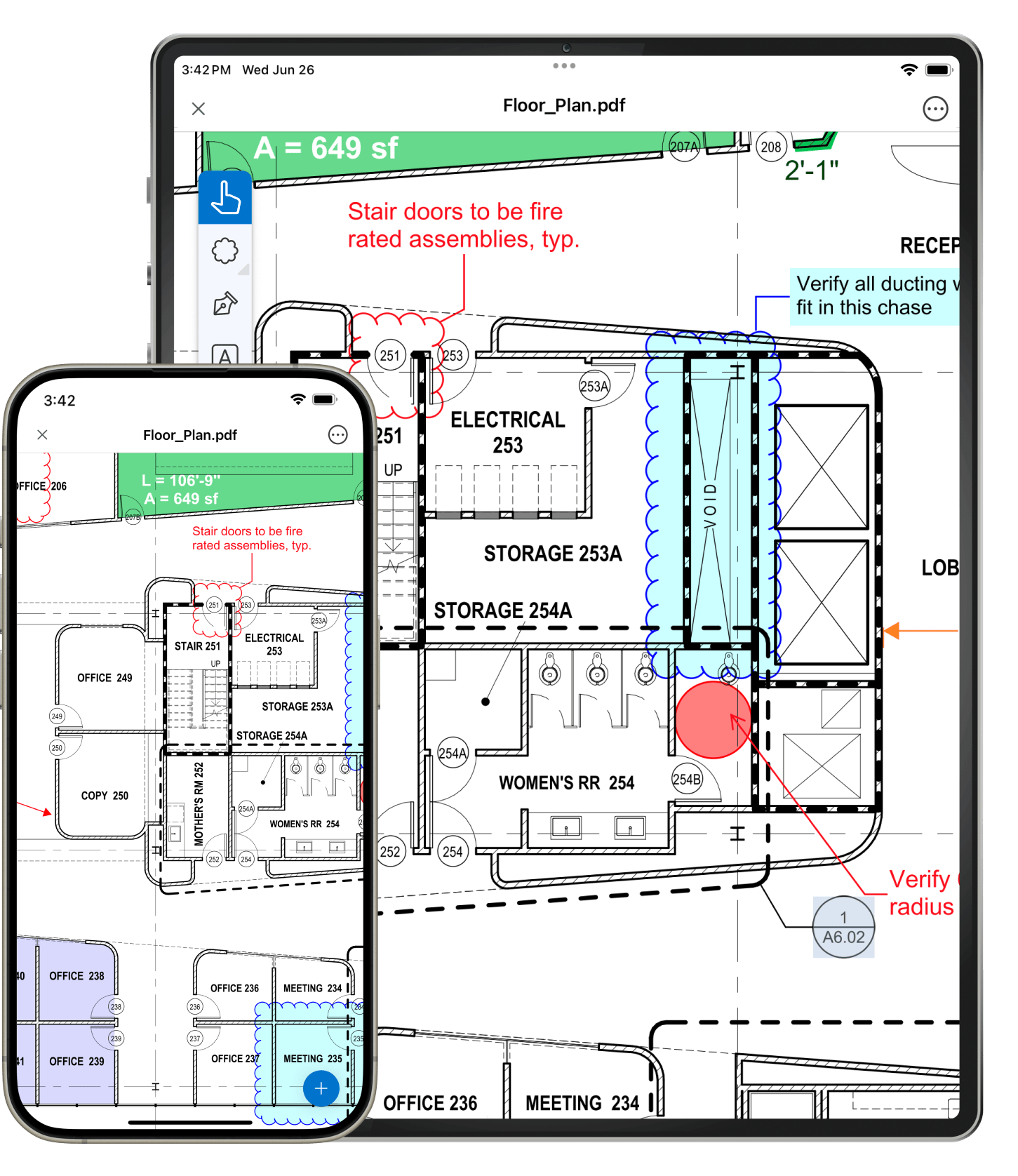
Define a space on a PDF, name it, shade it and Revu will do the rest. Once a space has been defined, all markups added to that space will be tracked in the Markups list which can be filtered to show detailed information. There's no limit to the number of spaces within Spaces that you can create. Need to edit a space? No problem. Just use the space editor to edit single spaces or multiple spaces at once.

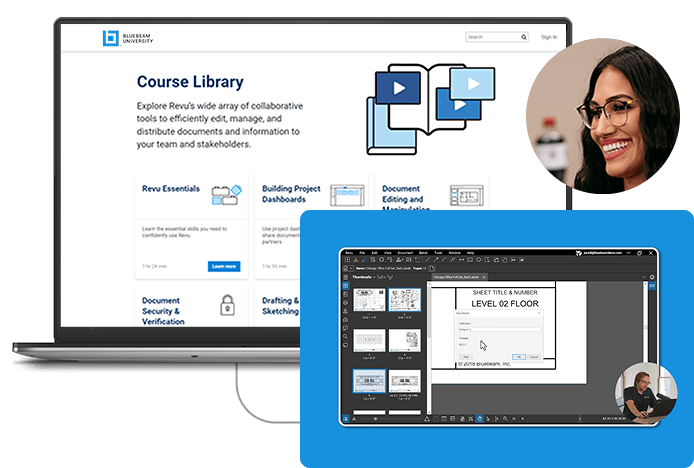
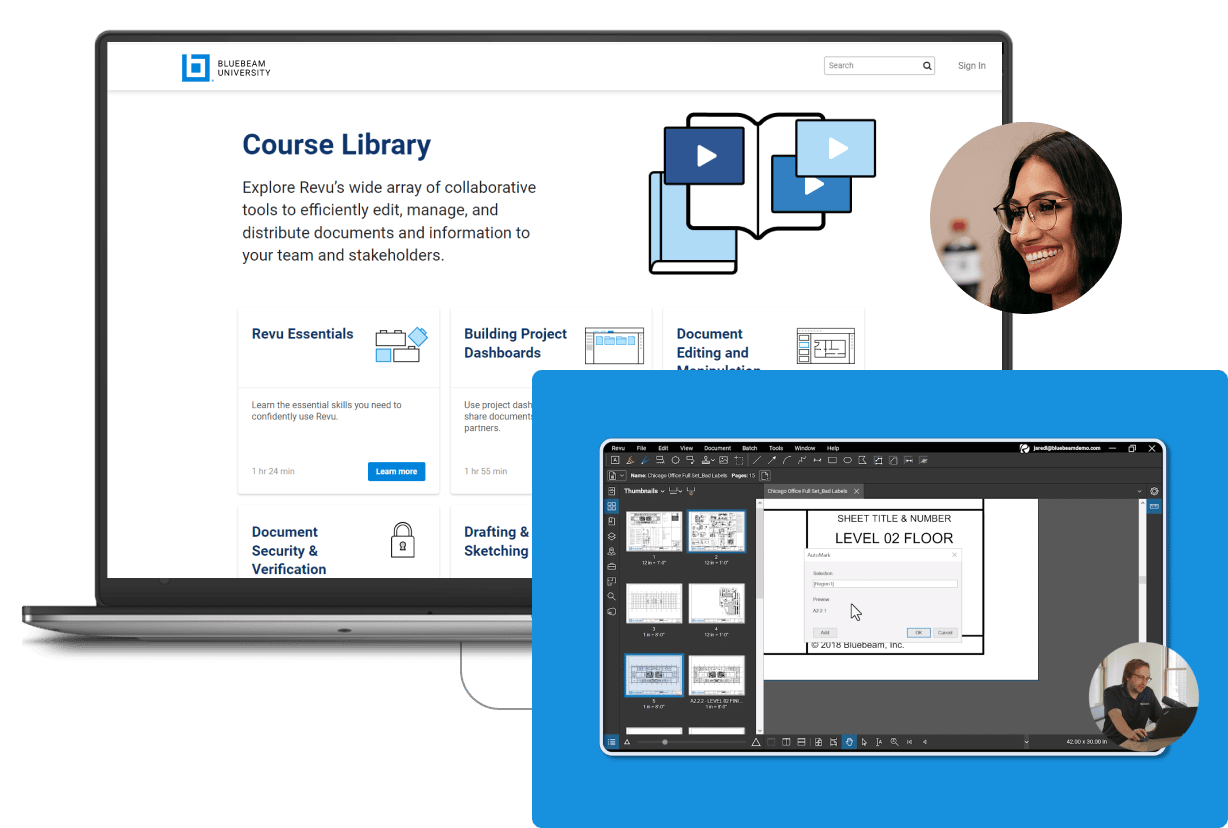
Revu automatically adds bookmarks when creating PDFs from MS Word, Excel and PowerPoint, AutoCAD, Revit and SolidWorks. Create bookmarks from PDF page labels, and labels from bookmarks. Define a page region that contains searchable text, such as a title block, and automatically generate bookmark names or page labels from that content. Bookmarks do more than jump to specific pages in a PDF, they can also be assigned snapshot views, take you to a webpage on the internet, and open files. Just add a bookmark and apply an action. It's simple.

Like bookmarks, PDF Flags can be used to jump to a specific page in a PDF, or open a website or file. PDF Flags can also be used to draw your attention to important information such as signature lines or notes in a large document.
Learn more on Bluebeam University